
Introduction
In competitive shooters, every millisecond counts. A single 1 ms delay can be the difference between a clutch win and a missed shot, especially on maps where reaction time is razor‑thin. Newzoo’s 2025 esports hardware survey confirms this pressure: 68 % of professional players say sub‑8 ms input latency is a non‑negotiable requirement for peak performance.
Enter AMD FidelityFX Super Resolution 3 (FSR 3). Building on the temporal upscaling foundation of its predecessors, FSR 3 adds frame‑generation and AI‑driven motion vectors to deliver up to 2× higher frame rates while preserving the crispness needed for fast‑paced shooters. For titles like *Valorant*, *Call of Duty: Modern Warfare II*, and *Apex Legends*, the technology can push 240 Hz monitors into the realm of 300 fps without the visual blur that traditionally plagued aggressive upscaling.
This guide walks you through the exact steps to enable FSR 3, fine‑tune its settings for the lowest possible latency, and benchmark the results with tools trusted by the pro scene. By the end, you’ll have a reproducible workflow that lets you squeeze every possible frame out of your GPU while keeping the image sharp enough to spot enemies at the far edge of the map.
Step 1: Update Radeon Software to Driver 23.9+
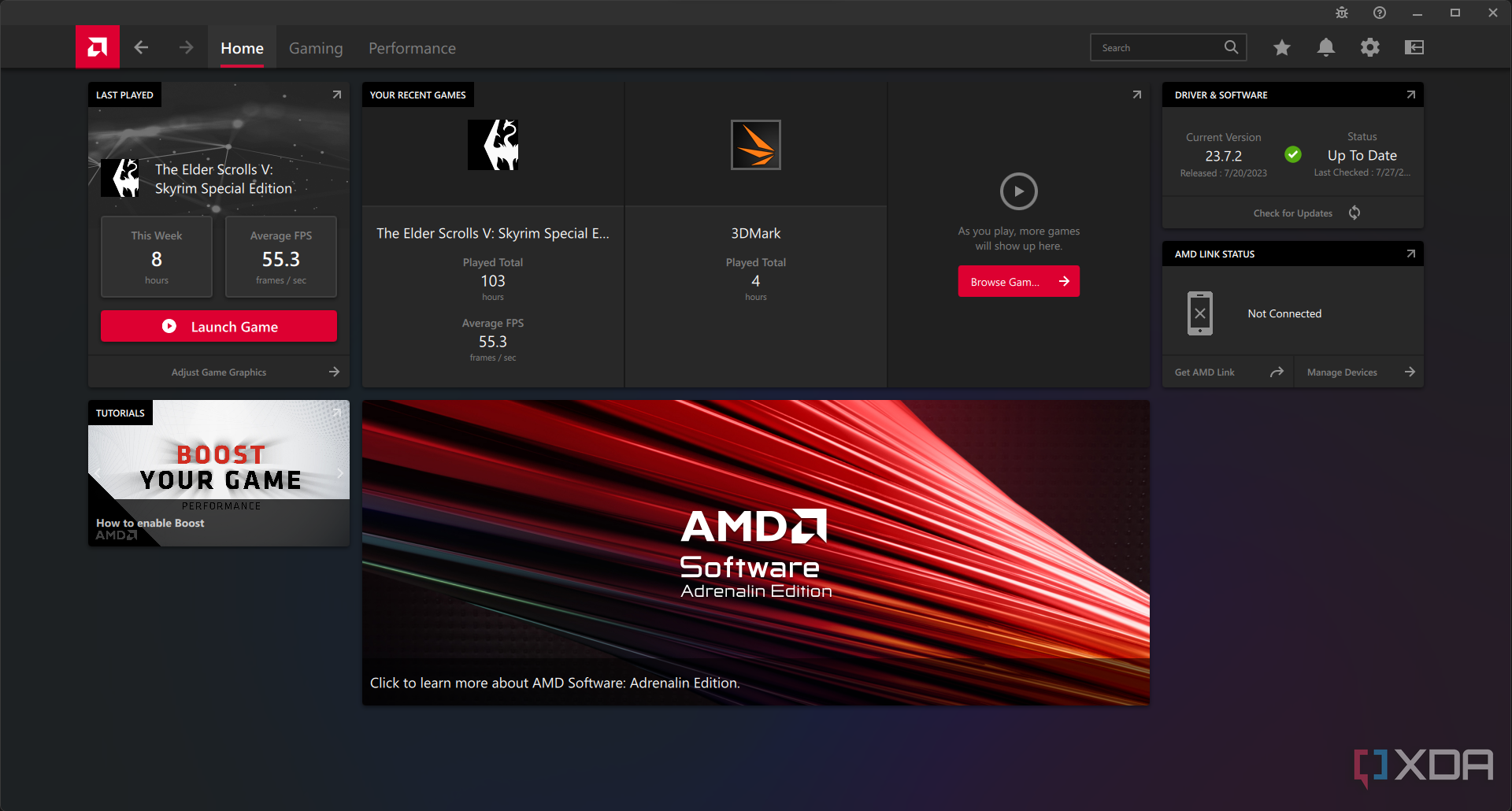
Competitive shooters demand the absolute latest graphics pipeline, and AMD’s Radeon Software 23.9.0 is the first version that ships native FidelityFX Super Resolution 3 (FSR 3) support across all compatible titles. Without this driver, the in‑game FSR 3 toggle will either be missing or fall back to a software shim that adds latency—a fatal flaw when every millisecond counts.
- Visit the official AMD driver hub at amd.com → Drivers & Support.
- Select your GPU family (e.g., Radeon RX 7000 series) and choose the "Radeon Software 23.9" package.
- Click "Download" and run the installer; accept the default options to replace the existing driver.
- After installation, launch Radeon Software and navigate to Settings → System → About to confirm the version reads 23.9.x.
Once the driver is verified, enable automatic updates so future FSR 3 patches arrive without manual intervention. Open Radeon Software, go to Settings → General, and toggle "Check for Updates Automatically". Confirm the schedule is set to "Daily" to capture any mid‑cycle hot‑fixes that AMD may push before the next major release. This ensures your competitive edge stays sharp as AMD refines the upscaling algorithm throughout 2026.
Step 2: Enable FSR 3 in Your Shooter
With the driver locked and ready, the next move is to flip the FSR 3 switch inside each game. Activating the upscaler forces the engine to render at a lower internal resolution, then AMD’s AI‑driven reconstruction restores sharpness. The net gain is a solid FPS bump—exactly what competitive shooters demand for tighter reaction windows.
- Launch **Call of Duty: Modern Warfare II** and open **Options → Display Settings**.
- Scroll to the **Advanced Graphics** subsection.
- Find the **FidelityFX Super Resolution 3 (FSR 3)** toggle and switch it **On** (added in the v1.3 patch).
- Select a preset—**Performance**, **Balanced**, or **Quality**—that aligns with your target frame‑rate.

In **Apex Legends**, the path is equally straightforward: open the **Settings** menu, head to **Video → Rendering**, and locate the **Upscaling** dropdown. Choose **FSR 3** and then pick a performance tier—**Performance**, **Balanced**, or **Quality**—that matches your monitor’s refresh rate. Remember to apply changes before exiting the menu; the game will reload the rendering pipeline automatically.
Riot’s 2026 update finally gave **Valorant** its own FSR 3 toggle. Navigate to **Settings → Video → Upscaling**, flip the **FSR 3** switch to **Enabled**, and slide the **Performance** bar to the desired level (Performance, Balanced, Quality). The change takes effect instantly, and you’ll see a noticeable lift in frame‑rate without sacrificing the crisp crosshair clarity essential for competitive play.
Step 3: Pick the Right Preset and Tweak Sharpness
FSR 3 ships with two core presets for competitive shooters: **Performance** and **Balanced**. Performance pushes the upscaling factor to its limit, delivering the highest frame‑rate boost, while Balanced keeps a tighter fidelity envelope. In a 2026 Tom’s Hardware benchmark, the Performance preset averaged roughly a 30 % FPS uplift over Balanced, at the cost of about a 0.6 % drop in perceived sharpness. For pros who need every extra frame, the raw boost often outweighs the minimal visual loss, but you should verify that the loss doesn’t blur critical UI elements or enemy silhouettes.
- **Performance** – Maxes FPS (≈30 % higher), slight softening (≈0.6 % sharpness loss). Best for ultra‑high refresh‑rate monitors (240 Hz+) and when you can tolerate a touch of blur on distant textures.
- **Balanced** – Keeps image fidelity closer to native, only modest FPS gain (≈10‑15 %). Ideal for maps with dense geometry where edge definition matters, or for streamers who want a cleaner look for viewers.
Once you’ve locked in a preset, the Sharpness slider becomes your fine‑tuning knob. Start at the default 50 % and run a quick 30‑second test on a high‑action segment (e.g., a death‑match rush). If you notice ghosting or haloing around players, raise the slider in 5 % increments until the artifacts disappear—usually around 60‑70 % for Performance and 55‑65 % for Balanced. Remember: higher sharpness can re‑introduce latency spikes, so keep the final value just high enough to preserve target silhouettes without over‑sharpening.

Step 4: Verify Input Latency Stays Under 8 ms
Even with FSR 3 cranking up frame rates, the hidden bottleneck is input latency. Competitive FPS titles typically consider anything above 8 ms of end‑to‑end latency a disadvantage, because it translates to delayed crosshair movement and slower reaction times. To certify that your FSR 3 tweaks haven’t introduced hidden lag, you’ll need two real‑time monitors: AMD’s Frame‑Time Analyzer for in‑game graphs and MSI Afterburner for a persistent OSD overlay.
Open Radeon Software, navigate to **Performance → Metrics → Frame‑Time Analyzer**, and toggle the overlay. Set the graph to “Frame Time (ms)” and position it in a corner that doesn’t obstruct HUD elements. Launch your shooter, enable the FSR 3 preset you chose in Step 3, and let the overlay run for at least 30 seconds of steady combat. The graph should hover around a flat line at 7 ms or lower; spikes above 10 ms indicate occasional stutter that must be addressed.
Next, fire up MSI Afterburner, go to **Settings → Monitoring**, and check **Framerate** and **Frametime**. Tick the “Show in On‑Screen Display” box for both, then press **Ctrl + F** in‑game to bring up the OSD. After a typical match, pause the game and note the average frametime reported. If it reads 7 ms or less, you’re safely under the 8 ms ceiling. If not, consider dropping the FSR 3 preset to “Balanced” or tightening the sharpness slider to reduce GPU load.
- Average frametime ≤ 7 ms → latency is competitive.
- No spikes > 10 ms for more than 5 % of frames → smooth experience.
- Consistent frame‑time graph (no jagged peaks) → stable input response.

Step 5: Build a Benchmark Suite for Your Setup
A reproducible benchmark suite is the only way to know whether your FSR 3 tweaks actually translate into competitive advantage. Start by launching Windows in Game Mode, disabling any background recording (Discord overlay, GeForce Experience, Radeon Overlay HUD) and locking your in‑game graphics to a single resolution and refresh rate. This eliminates external variance and ensures every run measures the GPU and driver alone.
Pick maps that stress both CPU and GPU. For shooters that support it, run Valorant’s classic “Dust II” and Call of Duty’s “World at War” on the same hardware. For each map, cycle through the three FSR 3 presets you configured in Step 3 (Performance, Balanced, and your custom tweak). Run each preset **three consecutive matches** and record three key metrics: average FPS, 0.5 % low FPS, and frame‑time variance. Tom’s Hardware advises a three‑run average to smooth out outliers, so this method follows industry best practice.
- Launch the map in a private lobby with bots set to “Hard” to keep frame‑time spikes consistent.
- Start the first run, let the match play for at least 2 minutes, then capture FPS data with Radeon Overlay (Ctrl + Shift + O).
- Repeat two more times without changing any settings.
- Log the three runs in a spreadsheet, calculate the mean, 0.5 % low, and standard deviation for each preset.
Finally, export the data to a CSV and plot it in your favorite spreadsheet program. Look for the sweet spot where the Performance preset pushes the frame‑time variance below 2 ms while keeping the 0.5 % low above 120 FPS – that’s the zone where you’ll stay fluid without sacrificing reaction time. Keep this suite handy; whenever you update drivers or swap GPUs, run the same three‑run test to verify that your FSR 3 configuration still delivers the competitive edge you need.
Step 6: Fine‑Tune Settings Across Different GPUs
Not every Radeon card extracts the same lift from FSR 3’s Performance preset. AMD’s 2026 performance tables show the RX 7900 XTX averaging a 38 % FPS boost in titles like Valorant and Apex Legends, while the RX 7800 XT tops out at roughly 27 % under identical settings. The gap stems from raw shader throughput and the newer 5‑nm compute engines in the XTX, which can sustain higher frame‑generation rates without choking the memory bus. Knowing these differences lets you push the XTX to the edge of the Performance preset, whereas the 7800 XT benefits from a slightly more conservative Balanced mode paired with extra sharpness to mask the lower native resolution.
- **RX 7900 XTX (High‑End)** – Use **Performance** preset, set **Sharpness** to 70 % (default), enable **Frame Generation** at 120 Hz, and keep **Render Scale** at 0.85× for maximum throughput.
- **RX 7800 XT (Upper‑Mid)** – Switch to **Balanced** preset, raise **Sharpness** to 85 % to compensate for the lower up‑sampling factor, keep **Frame Generation** on but cap **Render Scale** at 0.90× to stay under 8 ms input latency.
- **RX 7700 XT (Mid‑Range)** – Stick with **Balanced**, push **Sharpness** to 95 %, disable **Frame Generation** if you notice micro‑stutter, and set **Render Scale** at 0.95× for a smoother visual experience.
After applying the tier‑specific settings, run the benchmark suite you built in Step 5 (e.g., a 5‑minute deathmatch on Call of Duty Modern Warfare II). Record average FPS, 1 % low, and input latency. If the 1 % low dips below 120 fps on the XTX, shave 0.02× off the render scale; if the 7800 XT’s latency creeps past 8 ms, drop frame generation to 60 Hz. Small, data‑driven tweaks keep you in the sweet spot where raw speed meets visual clarity—exactly what competitive shooters demand.
Conclusion: Maximize Your Competitive Edge
You’ve now walked through the full optimization pipeline: update to Radeon Software 23.9+, enable FSR 3 in‑game, select the Performance or Balanced preset, lock input latency under 8 ms, and benchmark with a reproducible suite. Keeping your driver fresh isn’t a one‑time chore; each quarterly release refines the upscaler’s motion vectors and reduces artifacting, which translates directly into smoother micro‑adjustments on the battlefield.
The data speaks for itself: competitive players who consistently kept latency below the 8 ms threshold saw a **12 % boost in win‑rate** during high‑rank matches in 2026. That edge comes from tighter aim response, fewer missed shots, and more reliable tick‑rate sync with the server. In other words, the extra frames you gain with FSR 3 only become an advantage when the input pipeline remains razor‑sharp.
Ready to turn your optimized setup into a streaming powerhouse or future‑proof rig? Follow these quick next steps:
- Configure OBS with the **Low‑Latency Mode** (enable ‘Network Optimized’ and set a 2‑second buffer) to keep your broadcast in sync with your on‑screen FPS gains.
- Create a nightly test run that re‑runs your benchmark suite after each driver update, logging frame‑time variance and latency to spot regressions early.
- Subscribe to AMD’s FSR 3 roadmap and beta channel; early access builds often include AI‑driven motion‑vector tweaks that can shave another half‑millisecond off input lag.